ICE homescreen
When you are ready to run your program, you need to run ICE and select the name of your source program from the list. ICE can compile program regardless of whether they are archived or in RAM. You might see something like this:

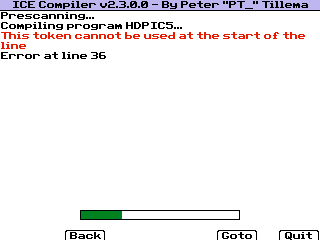
A few notes are important to help you compiling your program. With [UP] and [DOWN] you can select a program which you want to compile. If you selected one, you can press either [ENTER] or [Y=] to start compiling. Depending on the size of the input program(s) this might take a few seconds. If ICE encounters an error in your program, you will be given an error message explaining the type of error, and the line the error was encountered on. If your source program is unarchived, you can open the program editor with [TRACE] and it will automatically jump to the line containing the error.
However, this is a standalone program which you can't debug. That's why the button "Debug" is for. If you press [WINDOW] at the homescreen, ICE will create a debug appvar as well, which you can use in the ICE debugger. The ICE debugger appvar is distributed with ICE itself, as well as the ICE hooks appvar. If you press [GRAPH] at the ICE homescreen, you quit ICE.
When you compiled a program, you either will be greeted by an error message, or the message that it compiled successfully, as well as the output program name and size, like this:

Here you can see a few buttons which might be interesting. First, the "Run" button. If you press [Y=] right after compiling, you can run the compiled program immediately; you don't need to select it from the homescreen. You can also compile a second program with "Back" if you press the [WINDOW] key. Lastly, the "Quit" button stayed from the homescreen, and will quit ICE immediately.