
The missing link between your GPU and Python AI libraries


"Why does my PyTorch crash with CUDA errors when I just installed it?"
Because your driver supports CUDA 11.8, but
pip install torchgave you CUDA 12.4 wheels.
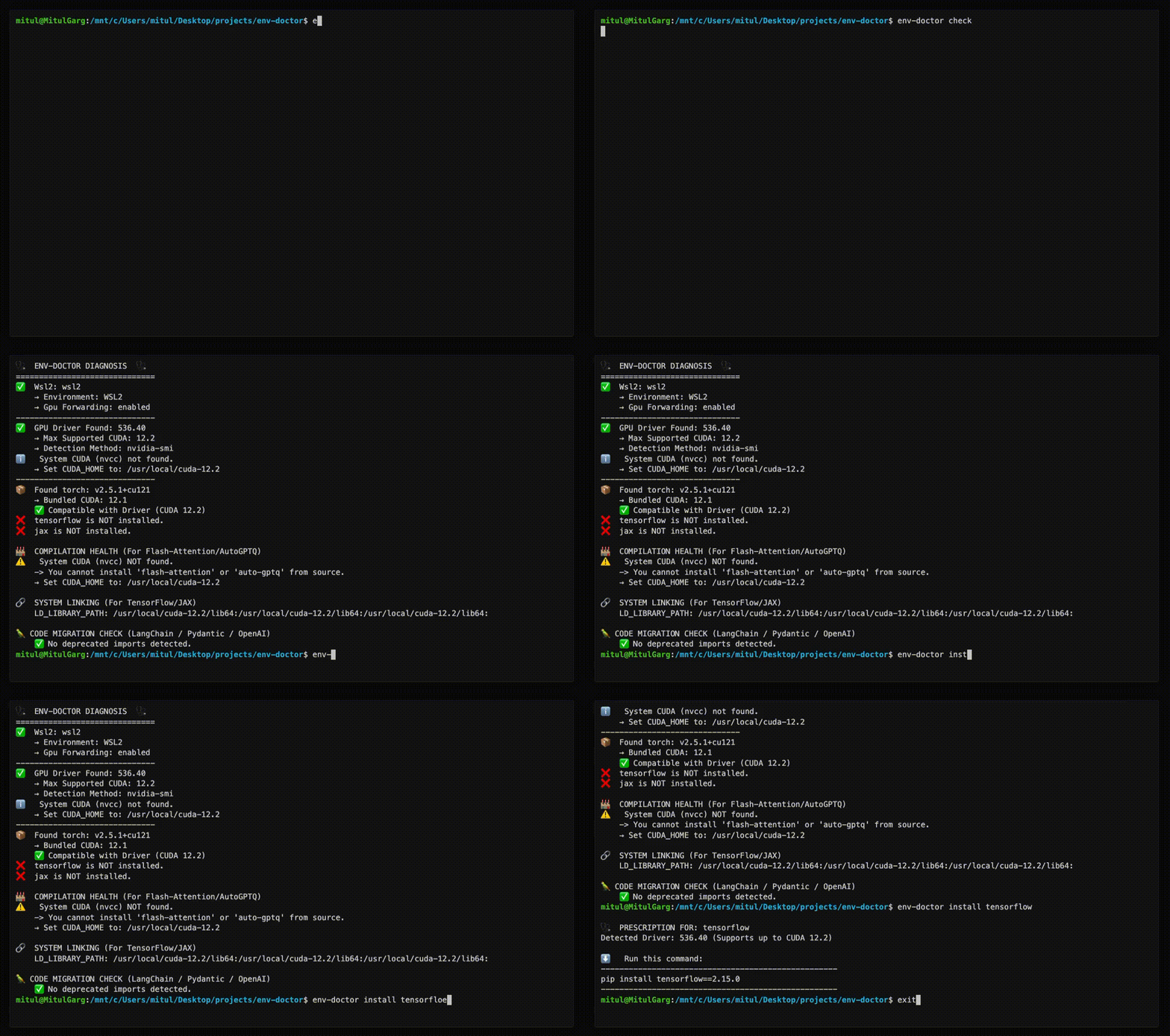
Env-Doctor diagnoses and fixes the #1 frustration in GPU computing: mismatched CUDA versions between your NVIDIA driver, system toolkit, cuDNN, and Python libraries.
It takes 5 seconds to find out if your environment is broken - and exactly how to fix it.
| Feature | What It Does |
|---|---|
| One-Command Diagnosis | Check compatibility: GPU Driver → CUDA Toolkit → cuDNN → PyTorch/TensorFlow/JAX |
| Compute Capability Check | Detect GPU architecture mismatches — catches why torch.cuda.is_available() returns False on new GPUs (e.g. Blackwell) even when driver and CUDA are healthy |
| Python Version Compatibility | Detect Python version conflicts with AI libraries and dependency cascade impacts |
| CUDA Auto-Installer | Execute CUDA Toolkit installation directly with --run; CI-friendly with --yes; preview with --dry-run |
| Safe Install Commands | Get the exact pip install command that works with YOUR driver |
| Extension Library Support | Install compilation packages (flash-attn, SageAttention, auto-gptq, apex, xformers) with CUDA version matching |
| AI Model Compatibility | Check if LLMs, Diffusion, or Audio models fit on your GPU before downloading |
| WSL2 GPU Support | Validate GPU forwarding, detect driver conflicts within WSL2 env for Windows users |
| Deep CUDA Analysis | Find multiple installations, PATH issues, environment misconfigurations |
| Container Validation | Catch GPU config errors in Dockerfiles before you build |
| MCP Server | Expose diagnostics to AI assistants (Claude Desktop, Zed) via Model Context Protocol |
| CI/CD Ready | JSON output, proper exit codes, and CI-aware env-var persistence (GitHub Actions, GitLab CI, CircleCI, Azure Pipelines, Jenkins) |
| Fleet Dashboard (optional) | Web UI for monitoring multiple GPU machines — aggregate status, drill-down diagnostics, history timeline. Install with pip install "env-doctor[dashboard]" |
The core CLI has no heavy dependencies — installs in seconds.
pip install env-doctor# Or with uv (faster, isolated)
uv tool install env-doctor
uvx env-doctor checkIf you want to manage a distributed system of multiple GPU nodes, this dashboard can help you from a observability POV. It adds a web UI for monitoring multiple GPU machines and has no effect on the core CLI. You will be able to soon take action directly from the dashboard via distributed env-doctor cli instances on each VM!
pip install "env-doctor[dashboard]"This adds: fastapi, uvicorn, sqlalchemy, aiosqlite
pip install env-doctor |
pip install "env-doctor[dashboard]" |
|
|---|---|---|
env-doctor check |
✅ | ✅ |
| All CLI commands | ✅ | ✅ |
| MCP server | ✅ | ✅ |
env-doctor check --report-to |
✅ | ✅ |
env-doctor report install/status |
✅ | ✅ |
env-doctor dashboard (web UI) |
✗ | ✅ |
Env-Doctor includes a built-in Model Context Protocol (MCP) server that exposes diagnostic tools to AI assistants like Claude Code and Claude Desktop.
-
Install env-doctor:
pip install env-doctor
-
Add to Claude Desktop config (
~/Library/Application Support/Claude/claude_desktop_config.json):{ "mcpServers": { "env-doctor": { "command": "env-doctor-mcp" } } } -
Restart Claude Desktop - the tools will be available automatically.
env_check- Full GPU/CUDA environment diagnosticsenv_check_component- Check specific component (driver, CUDA, cuDNN, etc.)python_compat_check- Check Python version compatibility with installed AI librariescuda_info- Detailed CUDA toolkit informationcudnn_info- Detailed cuDNN library informationcuda_install- Step-by-step CUDA installation instructionsinstall_command- Get safe pip install commands for AI librariesmodel_check- Analyze if AI models fit on your GPUmodel_list- List all available models in databasedockerfile_validate- Validate Dockerfiles for GPU issuesdocker_compose_validate- Validate docker-compose.yml for GPU configuration
env-doctor-mcp-demo.mp4
Ask your AI assistant:
- "Check my GPU environment"
- "Is my Python version compatible with my installed AI libraries?"
- "How do I install CUDA Toolkit on Ubuntu?"
- "Get me the pip install command for PyTorch"
- "Can I run Llama 3 70B on my GPU?"
- "Validate this Dockerfile for GPU issues"
- "What CUDA version does my PyTorch require?"
- "Show me detailed CUDA toolkit information"
Learn more: MCP Integration Guide
The core CLI works standalone. The dashboard is an observability layer for teams running multiple GPU machines.
pip install "env-doctor[dashboard]" unlocks a web UI that aggregates diagnostic results from every machine in your fleet into a single view — no SSH required.
There are two roles — the dashboard host (receives and displays reports) and the GPU machines (run checks and send results). They communicate over a simple REST API.
  Dashboard Host                                GPU Machine 1
  ┌─────────────────────-┐                 ┌───────────────────────────────┐
  │ env-doctor dashboard │ ◄──── POST ──── │ env-doctor check --report-to  │
  │ (React UI + SQLite)  │    /api/report  │ (runs locally, POSTs result)  │
  └─────────────────────-┘                 └───────────────────────────────┘
         ▲                                     GPU Machine 2
         │                               ┌───────────────────────────────┐
         └──────────── POST ─────────────│ env-doctor check --report-to  │
                       /api/report       └───────────────────────────────┘
Step 1 — Start the dashboard on any machine with a reachable IP (a cheap CPU instance is enough, no GPU needed):
pip install "env-doctor[dashboard]"
env-doctor dashboard
# → Serving at http://localhost:8765
Step 2 — Report from each GPU machine (only needs the core CLI, not the [dashboard] extra):
pip install env-doctor

# One-time report
env-doctor check --report-to http://<dashboard-host>:8765

# Or: set up automatic reporting every 2 minutes
env-doctor report install --url http://<dashboard-host>:8765 --interval 2m
report install creates a scheduled task on the GPU machine — a cron job on Linux/macOS or a Windows Task Scheduler entry on Windows. That task runs env-doctor check --report-to <url> on the configured interval.
The scheduled task fires every 2 minutes, but it does not POST every 2 minutes. Each run:
- Runs
env-doctor checklocally on the GPU machine - Hashes the result (status, checks — excluding timestamps)
- Compares to the last sent hash stored in
~/.env-doctor/report-state.json
| Condition | Action |
|---|---|
| Hash changed (driver updated, library installed, new issue) | POST full report immediately |
| Hash unchanged, 30 min since last POST | POST lightweight heartbeat (confirms machine is alive) |
| Hash unchanged, heartbeat not due | Skip — no network call, sub-second no-op |
On a stable machine, this means ~1 POST every 30 minutes instead of 720.
These commands run on each GPU machine, not on the dashboard host:
| Command | Where | What it does |
|---|---|---|
env-doctor dashboard |
Dashboard host | Starts the web UI and API server |
env-doctor check --report-to URL |
GPU machine | Runs check locally, POSTs result to dashboard |
env-doctor report install --url URL |
GPU machine | Creates a cron job / scheduled task on this machine |
env-doctor report status |
GPU machine | Reads this machine's local config and last report time |
env-doctor report uninstall |
GPU machine | Removes the scheduled task from this machine |
report status is purely local — it reads ~/.env-doctor/report-state.json and prints when this machine last reported and whether the scheduler is active. No network call.
# AWS / GCP / Azure — on your dashboard VM
pip install "env-doctor[dashboard]"
env-doctor dashboard --host 0.0.0.0 --port 8765
# Open port 8765 in your security group / firewall rules
# On each GPU instance (same VPC) — one command
pip install env-doctor && env-doctor report install --url http://<vm-private-ip>:8765For machines behind NAT (different networks), use Tailscale for zero-config networking:
# Install Tailscale on each machine, then use the Tailscale IP
env-doctor report install --url http://100.x.x.x:8765The web UI at http://<dashboard-host>:8765 displays:
- Topology view — force-directed graph showing the dashboard hub and all GPU machines as nodes, colour-coded by health status, with click-to-zoom detail panels
- Fleet overview — aggregate health pie chart, issues table with expandable per-machine diagnostics, health gauge, and remote command execution
- Machine detail — full diagnostic breakdown identical to what
env-doctor checkprints locally - History timeline — past snapshots per machine to track when issues appeared or were resolved
All data stored in ~/.env-doctor/dashboard.db (SQLite) on the dashboard host. No external database or cloud dependencies.
The dashboard can queue env-doctor CLI commands to run on remote machines — no SSH required.
  Dashboard                           GPU Machine
  ┌────────────┐                     ┌──────────────────┐
  │ Operator    │                     │ Scheduled check  │
  │ clicks      │                     │ (cron / Task     │
  │ "▶ Run" on  │                     │  Scheduler)      │
  │ Fleet page  │                     │                  │
  └──────┬──────┘                     └────────┬─────────┘
         │                                     │
         ▼                                     ▼
  Queue command                        env-doctor check
  in database                          --report-to <url>
  (status: pending)                            │
         │                                     ▼
         │                            Server returns pending
         │                            commands in response
         │                                     │
         │                                     ▼
         │                            CLI executes commands,
         │                            posts results back
         │                                     │
         │                                     ▼
         │                            CLI re-runs check to
         └─────────────────────────── verify the fix
How it works: GPU machines check in periodically via env-doctor check --report-to. On each check-in, the server returns any pending commands in the HTTP response. The CLI executes them, posts the output back, and re-runs diagnostics to verify the fix. This pull-based model means:
- No inbound ports needed on GPU machines (works behind NATs, firewalls, VPNs)
- No SSH credentials stored on the dashboard
- Only
env-doctorcommands are accepted (security scoped) - Commands typically execute within one check-in interval (default: 5 minutes)
Set up scheduled check-ins on each GPU machine:
# Linux / macOS — creates a cron job
env-doctor report install --url http://<dashboard-host>:8765 --interval 5m

# Windows — creates a Task Scheduler entry
env-doctor report install --url http://<dashboard-host>:8765 --interval 5m
Learn more: Fleet Monitoring Guide
env-doctor checkExample output:
🩺 ENV-DOCTOR DIAGNOSIS
============================================================

🖥️  Environment: Native Linux

🎮 GPU Driver
   ✅ NVIDIA Driver: 535.146.02
   └─ Max CUDA: 12.2

🔧 CUDA Toolkit
   ✅ System CUDA: 12.1.1

📦 Python Libraries
   ✅ torch 2.1.0+cu121

✅ All checks passed!
On new-generation GPUs (e.g. RTX 5070 / Blackwell), env-doctor catches architecture mismatches and distinguishes between two failure modes:
Hard failure — torch.cuda.is_available() returns False:
🎯  COMPUTE CAPABILITY CHECK
    GPU: NVIDIA GeForce RTX 5070 (Compute 12.0, Blackwell, sm_120)
    PyTorch compiled for: sm_50, sm_60, sm_70, sm_80, sm_90, compute_90
    ❌ ARCHITECTURE MISMATCH: Your GPU needs sm_120 but PyTorch 2.5.1 doesn't include it.

    This is likely why torch.cuda.is_available() returns False even though
    your driver and CUDA toolkit are working correctly.

    FIX: Install PyTorch nightly with sm_120 support:
       pip install --pre torch torchvision torchaudio --index-url https://download.pytorch.org/whl/nightly/cu126
Soft failure — torch.cuda.is_available() returns True via NVIDIA's PTX JIT, but complex ops may silently degrade:
🎯  COMPUTE CAPABILITY CHECK
    GPU: NVIDIA GeForce RTX 5070 (Compute 12.0, Blackwell, sm_120)
    PyTorch compiled for: sm_50, sm_60, sm_70, sm_80, sm_90, compute_90
    ⚠️  ARCHITECTURE MISMATCH (Soft): Your GPU needs sm_120 but PyTorch 2.5.1 doesn't include it.

    torch.cuda.is_available() returned True via NVIDIA's driver-level PTX JIT,
    but you may experience degraded performance or failures with complex CUDA ops.

    FIX: Install a newer PyTorch with native sm_120 support for full compatibility:
       pip install --pre torch torchvision torchaudio --index-url https://download.pytorch.org/whl/nightly/cu126
env-doctor python-compat🐍 PYTHON VERSION COMPATIBILITY CHECK
============================================================
Python Version: 3.13 (3.13.0)
Libraries Checked: 2
❌ 2 compatibility issue(s) found:
tensorflow:
tensorflow supports Python <=3.12, but you have Python 3.13
Note: TensorFlow 2.15+ requires Python 3.9-3.12. Python 3.13 not yet supported.
torch:
torch supports Python <=3.12, but you have Python 3.13
Note: PyTorch 2.x supports Python 3.9-3.12. Python 3.13 support experimental.
⚠️ Dependency Cascades:
tensorflow [high]: TensorFlow's Python ceiling propagates to keras and tensorboard
Affected: keras, tensorboard, tensorflow-estimator
torch [high]: PyTorch's Python version constraint affects all torch ecosystem packages
Affected: torchvision, torchaudio, triton
💡 Consider using Python 3.12 or lower for full compatibility
💡 Cascade: tensorflow constraint also affects: keras, tensorboard, tensorflow-estimator
💡 Cascade: torch constraint also affects: torchvision, torchaudio, triton
============================================================
env-doctor install torch⬇️ Run this command to install the SAFE version:
---------------------------------------------------
pip install torch torchvision --index-url https://download.pytorch.org/whl/cu118
---------------------------------------------------
Display instructions or execute the installation directly:
# Show platform-specific steps (default)
env-doctor cuda-install

# Preview what would run — no changes made
env-doctor cuda-install --dry-run

# Execute interactively (asks [y/N] before running)
env-doctor cuda-install --run

# Execute headlessly — great for CI/scripts
env-doctor cuda-install --run --yes

# Install a specific version, headless
env-doctor cuda-install 12.6 --run --yes
Example dry-run output (Windows):
[DRY RUN] [1/1] winget install Nvidia.CUDA --version 12.2

[DRY RUN] [1/1] nvcc --version

CUDA 12.2 installation completed successfully.
Verification: PASSED

Full log: C:\Users\you\.env-doctor\install.log
Every run writes a timestamped log to ~/.env-doctor/install.log for debugging.
Supported Platforms:
- Ubuntu 20.04, 22.04, 24.04
- Debian 11, 12
- RHEL 8, 9 / Rocky Linux / AlmaLinux
- Fedora 39+
- WSL2 (Ubuntu)
- Windows 10/11 (via
winget) - Conda (all platforms)
Exit codes for CI pipelines:
| Code | Meaning |
|---|---|
0 |
Installation succeeded and verified |
1 |
An installation step failed |
2 |
Installed but nvcc --version failed |
For extension libraries like flash-attn, SageAttention, auto-gptq, apex, and xformers that require compilation from source, env-doctor provides special guidance to handle CUDA version mismatches:
env-doctor install flash-attnExample output (with CUDA mismatch):
🩺  PRESCRIPTION FOR: flash-attn

⚠️   CUDA VERSION MISMATCH DETECTED
     System nvcc: 12.1.1
     PyTorch CUDA: 12.4.1

🔧  flash-attn requires EXACT CUDA version match for compilation.
    You have TWO options to fix this:

============================================================
📦  OPTION 1: Install PyTorch matching your nvcc (12.1)
============================================================

Trade-offs:
  ✅ No system changes needed
  ✅ Faster to implement
  ❌ Older PyTorch version (may lack new features)

Commands:
  # Uninstall current PyTorch
  pip uninstall torch torchvision torchaudio -y

  # Install PyTorch for CUDA 12.1
  pip install torch --index-url https://download.pytorch.org/whl/cu121

  # Install flash-attn
  pip install flash-attn --no-build-isolation

============================================================
⚙️   OPTION 2: Upgrade nvcc to match PyTorch (12.4)
============================================================

Trade-offs:
  ✅ Keep latest PyTorch
  ✅ Better long-term solution
  ❌ Requires system-level changes
  ❌ Verify driver supports CUDA 12.4

Steps:
  1. Check driver compatibility:
     env-doctor check

  2. Download CUDA Toolkit 12.4:
     https://developer.nvidia.com/cuda-12-4-0-download-archive

  3. Install CUDA Toolkit (follow NVIDIA's platform-specific guide)

  4. Verify installation:
     nvcc --version

  5. Install flash-attn:
     pip install flash-attn --no-build-isolation

============================================================
env-doctor model llama-3-8b🤖 Checking: LLAMA-3-8B (8.0B params)
🖥️ Your Hardware: RTX 3090 (24GB)
💾 VRAM Requirements:
✅ FP16: 19.2GB - fits with 4.8GB free
✅ INT4: 4.8GB - fits with 19.2GB free
✅ This model WILL FIT on your GPU!
List all models: env-doctor model --list
Cloud GPU Recommendations:
# Get cloud GPU recommendations for a model that doesn't fit
env-doctor model llama-3-70b --recommend

# Direct VRAM lookup (no model name needed)
env-doctor model --vram 80000 --recommend
☁️ Cloud GPU Recommendations
FP16 (~140.0 GB):
$27.20 /hr azure ND96asr_v4 8x A100 (40GB each) 180.0GB free
$29.39 /hr gcp a2-highgpu-8g 8x A100 (40GB each) 180.0GB free
...
Automatic HuggingFace Support (New ✨) If a model isn't found locally, env-doctor automatically checks the HuggingFace Hub, fetches its parameter metadata, and caches it locally for future runs — no manual setup required.
# Fetches from HuggingFace on first run, cached afterward
env-doctor model bert-base-uncased
env-doctor model sentence-transformers/all-MiniLM-L6-v2
Output:
🤖  Checking: BERT-BASE-UNCASED
    (Fetched from HuggingFace API - cached for future use)
    Parameters: 0.11B
    HuggingFace: bert-base-uncased

🖥️   Your Hardware:
    RTX 3090 (24GB VRAM)

💾  VRAM Requirements & Compatibility
  ✅  FP16:  264 MB - Fits easily!

💡  Recommendations:
1. Use fp16 for best quality on your GPU
env-doctor dockerfile🐳 DOCKERFILE VALIDATION
❌ Line 1: CPU-only base image: python:3.10
Fix: FROM nvidia/cuda:12.1.0-runtime-ubuntu22.04
❌ Line 8: PyTorch missing --index-url
Fix: pip install torch --index-url https://download.pytorch.org/whl/cu121
| Command | Purpose |
|---|---|
env-doctor check |
Full environment diagnosis |
env-doctor python-compat |
Check Python version compatibility with AI libraries |
env-doctor cuda-install |
Step-by-step CUDA Toolkit installation guide |
env-doctor install <lib> |
Safe install command for PyTorch/TensorFlow/JAX, extension libraries (flash-attn, auto-gptq, apex, xformers, SageAttention, etc.) |
env-doctor model <name> |
Check model VRAM requirements |
env-doctor cuda-info |
Detailed CUDA toolkit analysis |
env-doctor cudnn-info |
cuDNN library analysis |
env-doctor dockerfile |
Validate Dockerfile |
env-doctor docker-compose |
Validate docker-compose.yml |
env-doctor init --github-actions |
Generate GitHub Actions workflow |
env-doctor scan |
Scan for deprecated imports |
env-doctor debug |
Verbose detector output |
env-doctor dashboard |
Start fleet monitoring web UI (requires [dashboard] extra) |
env-doctor report install |
Set up periodic reporting via cron (Linux) or Task Scheduler (Windows) |
Generate a GitHub Actions workflow with one command:
env-doctor init --github-actionsThis creates .github/workflows/env-doctor.yml — review, commit, and push. Your CI will validate the ML environment on every push and PR.
Or add manually:
# JSON output for scripting
env-doctor check --json

# CI mode with exit codes (0=pass, 1=warn, 2=error)
env-doctor check --ci
GitHub Actions example:
- run: pip install env-doctor
- run: env-doctor check --ciFull documentation: https://mitulgarg.github.io/env-doctor/
- Getting Started
- Command Reference
- MCP Integration Guide
- WSL2 GPU Guide
- CI/CD Integration
- Architecture
Video Tutorial: Watch Demo on YouTube
Env-Doctor is built for Linux and Windows — the platforms where NVIDIA GPUs and CUDA are available. All GPU diagnostics (driver, CUDA, cuDNN, library compatibility) target these platforms.
macOS is supported for non-GPU features: Fleet Dashboard hosting, model memory checks (env-doctor model), Python compatibility, project import scanning, and the MCP server. This makes a Mac a great centralised dashboard host while your Linux/Windows VMs handle the GPU workloads.
macOS uses zsh, which treats
[]as a glob pattern. Quote extras when installing:pip install "env-doctor[dashboard]"
Contributions welcome! See CONTRIBUTING.md for details.
MIT License - see LICENSE